Windows 8: Installing unsigned drivers
Microsoft Windows 8 has a new installation process for new hardware.
(Devices previously loaded on Windows 98, XP, and Windows 7 will no longer load driver automatically in Windows 8. Drivers not written specifically for Windows 8 will be considered 'unsigned'. They created a process to install these drivers as follows.)
If you own a VCP/HID Device and you run the new Windows 8 operating system, you will need to install an unsigned driver to connect your device. This driver is safe to install; it has been thoroughly tested.
There are two general steps to successfully install an unsigned driver with Windows 8: (Step 1) Momentarily disable the signature enforcement, and (Step 2) Install the driver.
There are two general steps to successfully install an unsigned driver with Windows 8: (Step 1) Momentarily disable the signature enforcement, and (Step 2) Install the driver.
Step 1: To momentarily disable the signature enforcement
- Go to the Settings. Move mouse to the corner of screen to bring up menu, select Settings (or Press and hold the Windows key and the "I" key to launch the charm bar for Settings) click Change PC Settings
- Click General
- Scroll down and click Advanced Startup
- Click Restart now. The computer will restart to a startup menu
- Click on Troubleshoot
- Click on Advanced options
- Click on Startup Settings
- Click Restart
- The computer will restart and prompts another menu to choose. One of the options is to Disable driver signature enforcement. Press number 7 or F7 to continue booting to Windows 8 with digital signature enforcement disabled.
- You are now ready to move to Step 2




Step 2: To Install the unsigned driver
- Use the installation disk to automatically load the driver for your product.
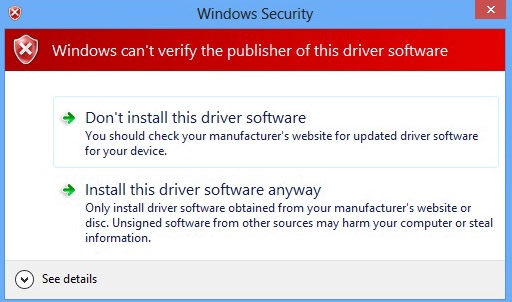
- Click Install this driver software anyway